In this article I will give a tutorial how to send and receive files using Bluetooth Android. I will also give a tip how to send or receive files that previously cannot be sent using Bluetooth. If you want the transfer process successful, it is suggested that you do a pairing first.
What is Bluetooth Pairing?
Bluetooth pairing is a procedure to connecting or pairing two Bluetooth devices. If the two devices paired, it means between device A and device B is already recognize each other. Device A will be registered on Device B system and vice versa. If already paired, the system will think that it is safe to transfer file or data between devices.
The main purpose of Bluetooth pair is to reduce a risk of unknown or unrecognized devices perform file transfers, for example, sending a virus or unwanted content to our own devices. Therefore, if you do file transfer via Bluetooth without pairing first, sometimes it fails, because system thinks it’s unsafe.
How to do Bluetooth pairing
In this tutorial, I will give an example how to pair Huawei X5 Android with Nokia E61i Symbian. Here’s the step:
1. Activate Bluetooth on the device that want to be pairs (The E61i) and make their status to be detected / seen / discoverable / visible / visibility on / discovery mode, it depend on what the device manufacture call it. In Nokia E61i, set the phone’s visibility to “Shown to allâ€.

Choose "Shown to all"
2. Activate Bluetooth on your Android phone or tablet. What you have to do is go to Settings > click Wireless & Networks > click Bluetooth settings> give a check mark on “Bluetooth” Words
3. Wait for a moment while your Android device searching other Bluetooth device, in this case, wait until it detected the Nokia E61i. If detected, the Nokia E61i “Name†will be shown under the “Bluetooth Devices”
4. Click on the device that you want to pair (click on Nokia E61i Name). If the E61i not yet appear, click  “Scan for devices”.

Click on Nokia E61i name
5. Select and enter the passkey / PIN for the pair process. The PIN is up to you, you can choose whatever number and it only use once. To make it easy, you can enter 1234.

Enter the PIN (1234)
6. Look at the other device screen, you will be prompted to enter a PIN > enter the same PIN that you already choose (1234).

Enter the same PIN (1234)
7. Pair process is completed
Basically, the method to do Bluetooth pairing is same whatever device you want to pair with your Android. For example, if you want to pair with your Bluetooth headsets, you just have to set the headsets in “discoverable†mode > wait for Android phone detecting the headsets > click on the headset “name†> enter the PIN or passkey (PIN is usually written on the box or in the manual book of headsets) > done.
How to receive file via Bluetooth in Android
- Go to Settings
- Click on “Wireless & Networks”
- Give a check mark on “Bluetooth” to activate
- Click on “Bluetooth Settings”
- Thick the “Discoverable” . When checked, Android device will be detected by other devices for some time
- Start the transfer process from other device to your Android device
- Once the other device starts the transfer process, you should look in your Android phone or tablet screen, is there any action needed to take to approve the transfer. Try opening the notification bar, if there any confirmation required > click “Accept”
- Wait until the transfer process finishes.
Note: The data or file that you receive via Bluetooth, usually stored in the “Bluetooth” Folder on your Android SD card.
How to send files via Bluetooth Android:
In general, to send files via Bluetooth, you just need to do this following step:
- Open the Gallery or other applications that is use to handle the type of file you want to send. For example, if you want to send a ColorNote file (some of Notepad application), then you should open ColorNote application, etc.
- Select / Open the file you want to send via Bluetooth.
- Press the MENU button
- Click Share (Share) / Send / Transfer (depending on the application you use)
- Click Bluetooth
- Android phone will search for other Bluetooth device
- Click on the other device “name†to start the transfer process
- Look at the receiver device screen is there is any confirmation needed, for example by pressing the Yes / OK / Accept button, etc. If the receiver is an Android phone, try opening the notification panel, then click the “Incoming File Transfer notificationâ€
- After it confirmed by another device, the Bluetooth transfer process will start.
How to Send MP3 via Bluetooth Android
To be able to send MP3 files, music, and other files via Bluetooth Android, you need to install the file manager application first. This application is useful for browsing or viewing files stored on your Android phone or tablet. You can install a file manager application from the Android Market, for example the Dual File Manager XT or Astro File Manager.
Here is an example how to send mp3 via Bluetooth android using Dual File Manager XT Application:
1. Activate Bluetooth on the Android phone and on another device. It’s better if you already paired the devices.
2. Open the Dual File Manager XT application, then find and click at the folder where you stored your music files. For example if I stored my MP3 files in “4music†folder, then I will click on that folder. If you store your music files on “Media†folder, then you must click the Media folder, etc.
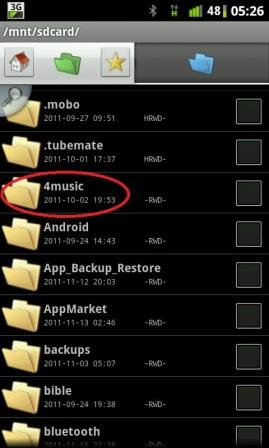
Click at the folder where you stored the MP3 files
3. Give a check mark on the files you want to send
4. Press the MENU button > click Share > select Bluetooth
How to handle files that can not be received or sent via Bluetooth
Some types of files cannot be send or receive via Bluetooth, although both devices already paired. When the user tries to send files, it shows notifications “File is unsupported”, “phone can not handle this type of file”, “transfer failedâ€, etc. To overcome this condition, you can install “Bluetooth File Transfer†application made by Medieval Software. This application can be downloaded for free from Android Market. Just for your information, the maker of Bluetooth File Transfer app and Dual File Manager XT app is same, so the user interface is look similar.
How to use Bluetooth File Transfer application to overcome Android device that can’t receive files via Bluetooth:
- It suggested that you already paired with the sender device and the Bluetooth is active.
- Open the Bluetooth File Transfer application
- Begin the transfer process
Yup, by just installing and activate this application, usually it can solved the problem.
How to use the Bluetooth File Transfer application for sending files from Android phone
1. Turn on Bluetooth and pair both devices
2. Activate the “Bluetooth File Transfer” application
3. Click on the Bluetooth tab (Click at the Bluetooth icon in the upper right screen)
4. Click on the receiver device name. For example, I want to send files to my cellular phone named “Ted 3000â€

Click on the device name
5. Wait until the detection process is completed
6. Now you can transfer files from your Android phone to other device. What you have to do is click the “Files Tab†on your Android (the phone icon at the left of the screen) > open on the folder where the files are stored > thick the files you want to send > press the MENU button > click Edit > click Upload.
How to read and retrieve files that stored on other device using your Android phone or tablet
If the other device supports Bluetooth FTP (File Transfer Profile), then the Bluetooth File Transfer application can read and open files stored on the other device and you can “retrieve” the file directly using your Android phone.
Because my cellular phone supports Bluetooth FTP, then my Android phone can read files that stored on my cell phone.
Below is a picture of file folders on my other Cell Phone “Ted 3000â€. I can read the folder using Bluetooth File Transfer application.

I can read files and folder on the other device using Bluetooth
To retrieve files from the other device, you simply open the folder where the files are stored, for example if you want to take the photo files, then open or click the “Images†Folder > give a check mark on the files you wish to get > press the MENU button > click Edit > click Download. You can also choose the common file operations command such as “Copy†or “Moveâ€.
How to transfer all types of files via Bluetooth between Android devices
If you want to transfer files between two Android devices, it is advisable that on both device already installed Bluetooth File Transfer application. If you do that and you activate this app (on both devices) every time you want to transfer files via Bluetooth, then you can transfer almost all (if not ALL) file types without a problem.
I really appreciate what you post. You have a new subscriber now.
You’re welcome Sylvia 🙂
very helpful
Thanks Deepak 🙂